




Did you know that your smartphone can double as a dashcam? Dashcams are useful for recording road incidents, capturing scenic drives, and sometimes even helping with insurance claims. While standalone dashcams are available, using your smartphone is a cost-effective and simple alternative.
In this guide, we’ll walk you through how to set up your smartphone as a dashcam — step by step.
Step 1: Choose a Dashcam App
To begin, download a dedicated dashcam app. These apps are designed to automatically record video, manage storage, and overwrite old footage when needed.
Popular dashcam apps include:
- AutoBoy Dash Cam (Android)
- DailyRoads Voyager (Android)
- Smart Dash Cam (iOS)
- Car Camera DVR (iOS)
Make sure the app you choose supports loop recording and has emergency save features.
Step 2: Prepare a Phone Mount
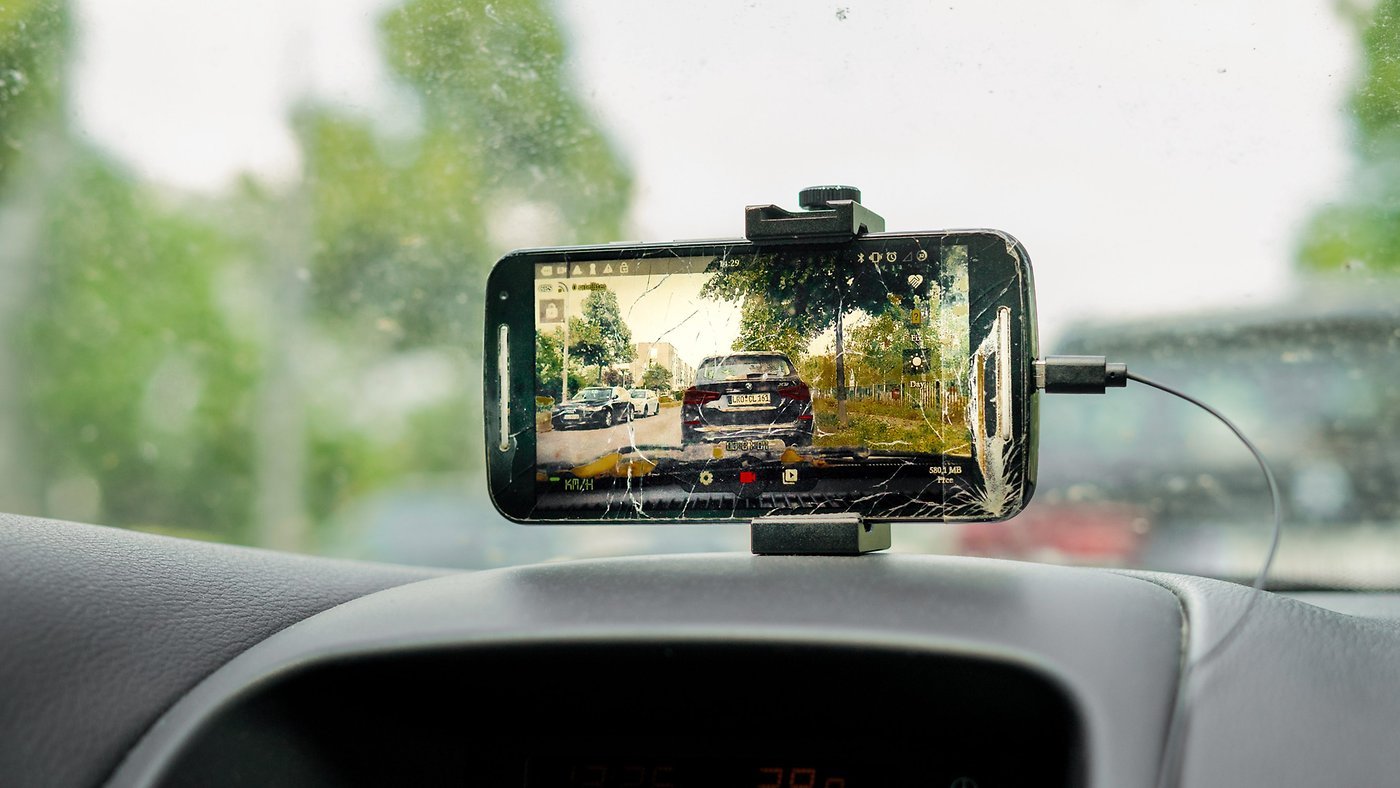
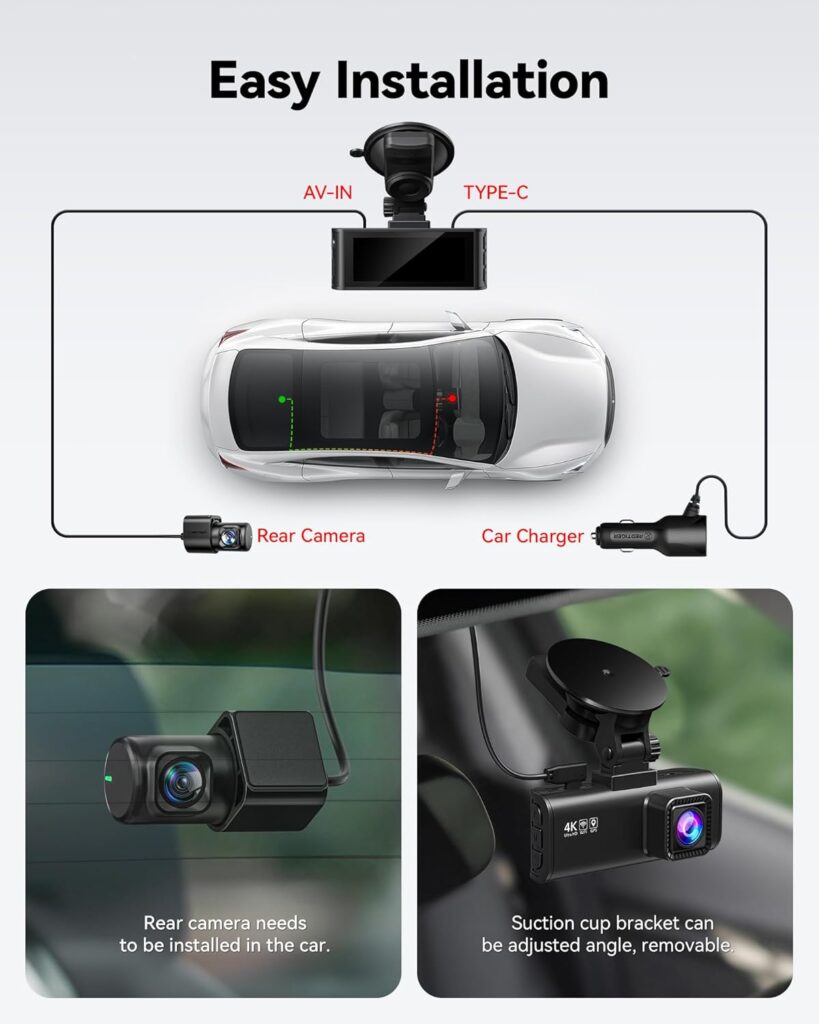
You’ll need a stable windshield or dashboard mount for your phone. Position it so the camera has a clear view of the road. Avoid blocking your view while driving.
Look for mounts with adjustable angles and strong suction to keep your phone secure even on bumpy roads.
Step 3: Plug In and Manage Power
Recording video drains your battery quickly. Use a car charger to keep your phone powered while it records. A dual-port charger is a good option if you want to charge another device at the same time.
Step 4: Free Up Storage Space
Videos take up a lot of storage. Clear unnecessary files from your phone and consider using a microSD card (if supported) or cloud backups to manage your dashcam footage.
Set your app to record in moderate video quality to balance file size and clarity.
Step 5: Adjust Settings
Open your dashcam app and configure the settings:
- Loop recording: Automatically deletes old footage
- Emergency recording: Lock/save footage after a crash
- Audio recording: Optional but useful
- Night mode: For low-light driving
Test the setup before hitting the road.
Final Tips
- Keep your phone cool — long recordings can cause overheating.
- Don’t use your phone for navigation while it’s recording video.
- Clean your windshield and camera lens for clear footage.
Using your smartphone as a dashcam is an affordable way to increase safety and peace of mind on the road. Just follow these steps, and you’re good to go!